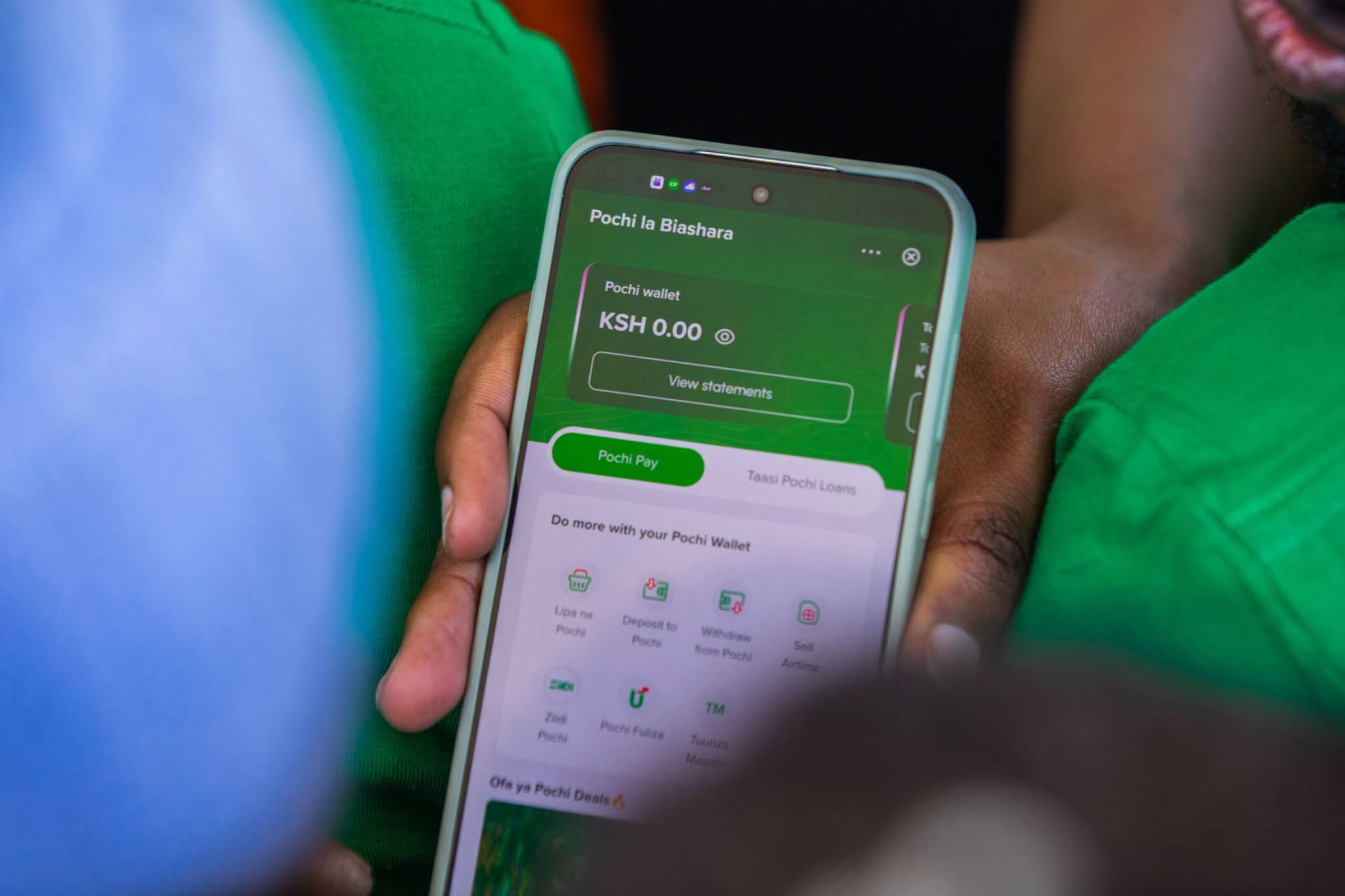
How to Use Dynamic QR Codes for Scan-to-Pay
A practical guide to what customers and merchants should check before completing a QR payment.

In this article
To use scan-to-pay, open a payment app that supports the merchant’s QR code, scan the code, check the payment details and confirm only if they are correct.
You need a phone with a camera, an eligible payment app or wallet, and a working connection if the app requires one. The merchant needs to display a valid QR code and provide a clear way to confirm that payment arrived. The steps below explain the general scan-to-pay process; providers can implement it differently.
What is scan-to-pay with a dynamic QR code?
Scan-to-pay lets a customer use a phone camera or payment app to read a QR code and start a payment. A dynamic QR code is generally created for a particular transaction or payment request. Depending on the provider’s setup, it may carry details such as the amount or a reference. The customer should still review the information shown in the app before approving the payment.
A static QR code, by comparison, usually presents the same payment destination each time it is displayed. The customer or cashier may need to enter the amount separately. This distinction describes common QR payment designs; it does not confirm which technical method Safaricom and Pesapal use for the service named in the LinkedIn listing.
How do you make a scan-to-pay transaction?
- Ask which payment method the merchant accepts. Confirm that the merchant accepts QR payments through an app or wallet available to you. Do not assume that every QR code works with every banking or mobile payment app.
- Open the payment app yourself. Use the official app already installed on your phone. Find its scan, pay or QR function. Avoid opening a payment page from an unexpected message or scanning a code sent by an unknown person.
- Scan the code displayed for the purchase. Point the camera at the merchant’s QR code and wait for the app to read it. If the code is damaged, covered or difficult to read, ask the merchant to display it again rather than guessing at a payment address.
- Review the payment screen. Check the merchant or recipient name, amount and any reference shown. If the amount is missing, ask whether you should enter it. If the displayed recipient or amount is wrong, stop and ask the merchant to correct the request.
- Confirm only after checking. Follow the app’s approval steps, such as entering a PIN or using another authentication method it provides. Keep your PIN private. A merchant should not need you to disclose it.
- Wait for confirmation. Check the app for a completed status or receipt. Show the confirmation to the merchant if needed, but do not treat a screenshot alone as proof that funds reached the merchant. The merchant should also check the payment notification or its own transaction record.
- Keep the receipt or reference. Save the in-app record or transaction reference until the purchase is settled. It can help both parties investigate a delay or disputed payment.
What should a merchant do before accepting QR payments?
A merchant should display the code where the customer can scan it and confirm that it belongs to the intended business. Before handing over goods or closing a sale, staff should check the merchant’s own payment record or an official confirmation channel. A customer’s screen can show that they started a payment without proving that the merchant received it.
For a dynamic request, staff should also compare the amount and transaction reference with the sale. If a customer scans an old, reused or unrelated code, the payment may not match the purchase. Follow the provider’s instructions for creating, refreshing or cancelling a request; the LinkedIn listing does not provide those operating details for the Safaricom and Pesapal service.
What should you do if the QR payment fails?
- The code will not scan: Check that the camera can focus and that the code is well lit and unobstructed. Ask the merchant for a fresh display or another accepted payment method.
- The app shows the wrong recipient or amount: Do not approve it. Ask the merchant to verify the request and issue the correct one.
- The app remains pending: Do not immediately pay again. Check the transaction history and ask the merchant to check its records. A second attempt could create a duplicate payment if the first one later completes.
- You see a debit but the merchant cannot confirm receipt: Keep the transaction reference and contact the payment provider through its official support channel. Avoid sharing your PIN, password or one-time security code with anyone claiming to resolve the issue.
- You cannot find the feature: Check the app’s official help information or contact the provider. The source listing does not name supported apps or explain eligibility.
What details about the Safaricom and Pesapal codes remain unclear?
The available source is a LinkedIn headline and publication listing. It identifies Safaricom and Pesapal and describes their subject as dynamic QR codes, but it does not explain the launch scope, participating merchants, supported payment apps, customer eligibility, settlement timing, fees, refunds or dispute procedures. Do not infer these terms from the general workings of QR payments.
Before using the named service, ask the merchant or provider whether your payment app is supported, how to verify a successful payment, and where to report an incorrect or delayed transaction. For each purchase, scan the merchant’s current code, check the recipient and amount in your app, approve only the correct request, and retain the transaction reference.